


Ringtone Maker:create ringtone
4.735.37K Reviews
App Specs
- Version
- Varies with Device
- Updated On
- License
- Free
- Downloads
- 100,000,000+
- Developer
- Big Bang Inc.
- Categories
- Personalization
- Platform
- Android, iOS
Screenshots
 Analysis by AppCompare
I use a ringtone editor for a very practical reason: I want to recognize a call without reaching for my phone every time another default alert sounds. Ringtone Maker: create ringtone is aimed at that small, satisfying bit of personalization. It gives me a way to shape audio I already have, or capture a sound myself, rather than relying only on a ready-made tone. That makes it most appealing if you have a particular song moment or recorded sound in mind and want to turn it into something useful.
My expectations for speed are modest and sensible. This is a focused editing app, not a full music-production studio, so I would approach it with a short, clear task: find a source, choose a section, make a few adjustments, then save the result. The less time I spend searching through a long recording or experimenting without a target, the quicker the whole job should feel. For a one-off alert, I’d decide on the sound and approximate section before opening the editor.
That preparation matters most when the source is a full-length song or a recording with silence at the beginning. A useful ringtone usually depends on getting to its recognizable part promptly, not simply choosing a track and accepting its opening. I’d listen for the moment that makes the sound identifiable, then trim around it with enough lead-in to avoid an abrupt start. A familiar chorus may work well for a ringtone but feel distracting as a notification; a brief, distinct sound is often a better match for shorter alerts.
Quick edits versus more involved sessions
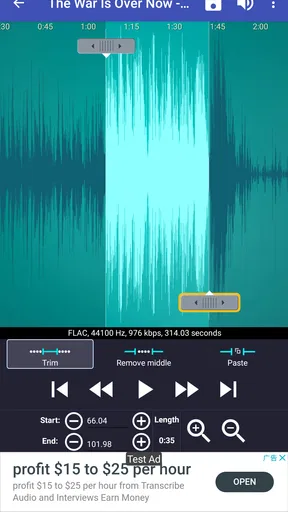
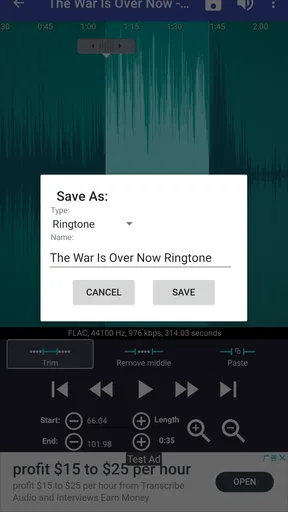
For a simple crop, the editing tools described in the app’s workflow sound like a good fit: adjust the start and end, preview the result, and make another pass if the cut feels awkward. If I’m working on several tones in one sitting, I’d give each a clear name as I save it. That small habit makes it easier to tell a contact sound from an alarm later, especially when the source tracks are similar.
More involved edits call for patience. Trying a different volume, pitch, or effect can be fun, but each change should solve a specific problem rather than being added just because it is available. If a clip already stands out, extra processing may make it harder to recognize. I’d compare the edited version with the original and listen at the sort of volume I normally use on my phone before deciding it is finished.
Reliability means checking the result
I wouldn’t treat a successful edit as the end of the job. I’d play the saved tone once, check that the beginning and ending feel intentional, and confirm that I chose the right file when assigning it. A clip that sounds fine in the editor can be less useful when heard as an incoming call, particularly if its opening is quiet or its strongest moment arrives too late.
It also helps to keep the original audio untouched. That gives me a straightforward fallback if I later want a different cut or the first version does not suit its intended use. When making a tone for a specific person, I’d test the assignment with that contact rather than assuming that saving and setting the file are the same step. This is a simple way to catch a mix-up before I rely on it.
Worth Reading Before You Choose

Baby Panda World Brings Quick Play to Modern Phones, but Its Game Library Feels Busy

ESPN’s Live Game View Makes Following Close Games Easier

QuizzLand Review: A Good Fit for Short Trivia Breaks, Not Every Player

Basketball Stars: Multiplayer Is Fast, but Can It Recover When Matches Go Wrong?

WEBTOON Turns Phone Updates Into a Better Reading Routine

Link to Windows Runs on Shared Habits, Not Social Feeds
Choosing the right tool for your phone
Ringtone editing is a small job, but the best workflow can depend on what you want to do afterward. A ready-made ringtone collection is more convenient if I just want a new sound without editing. A desktop audio editor makes more sense for detailed sound design or a complicated mix. This app’s appeal is the middle ground: make a personal cut from music or a recording, then use it as a phone sound without turning the task into a larger project.
It is also worth keeping expectations tied to the device and audio source. A very long file can take more effort to browse than a short recording, and a subtle clip may not stand out in a noisy place. I’d choose a clear, distinctive section and avoid relying on a quiet intro. If the result is intended as an alarm, I’d favor something easy to notice over a delicate passage that works better in headphones.
Who will get the most from it?
I’d recommend this kind of tool to someone who already has a particular song, voice recording, or sound in mind and wants a personal tone without learning a full audio workstation. It is also useful if you like assigning different sounds to people or purposes, since a little organization can make those choices easier to manage. If you rarely change your phone’s sounds, or would rather pick a finished tone from a collection, the editing steps may feel unnecessary.
One everyday example: I might want a short, recognizable snippet for a family member’s calls, while keeping a calmer sound for general notifications. I’d cut the call clip so its identifying note arrives early, save it with a name I can understand later, and listen once more before assigning it. For the notification, I’d choose a shorter and less intrusive sound. Thinking about where and how a tone will be heard is more useful than making every edit as elaborate as possible.
What to expect from the app
Big Bang Inc. makes this free personalization app, which is rated for Everyone. It has a 4.6 average from around 667,000 ratings and more than 100 million installs, so it is a familiar option for people looking to make their own phone sounds. Those figures are context, not a guarantee that every workflow will suit every device. I’d still judge it by whether the editor handles my source comfortably and whether the saved result works for the purpose I had in mind.
Since it has been available since December 2, 2010, the app has had a long life as a ringtone-making option. What matters in day-to-day use, though, is keeping the task simple: choose a suitable source, make a clean edit, save a clearly named result, and test it. If that is all you need, a dedicated editor is easier to justify than opening a larger audio tool and working through features you will never use.
Hey there, fellow sound enthusiast! If you're like me, you've probably spent way too much time scrolling through the same old ringtones that came with your phone. Enter Ringtone Maker: create ringtone, the app that promises to transform your favorite tunes into personalized ringtones. I dived into this app to see if it lives up to the hype, and here’s what I found.
First Impressions: Easy Peasy Setup
Installing Ringtone Maker: create ringtone was a breeze. The app is available on both Android and iOS, so no matter your phone preference, you’re covered. Upon opening the app, I was greeted with a clean and straightforward interface. No unnecessary frills here, just the good stuff!
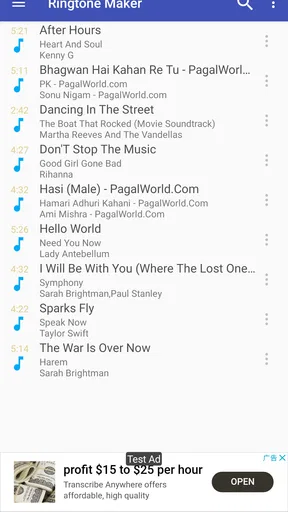
The layout is intuitive, which means you can jump right in without a steep learning curve. The home screen features a few icons that guide you to create, edit, and manage your ringtones. It’s great for those of us who prefer to get things done quickly without wading through tutorials.
Creating Your Masterpiece
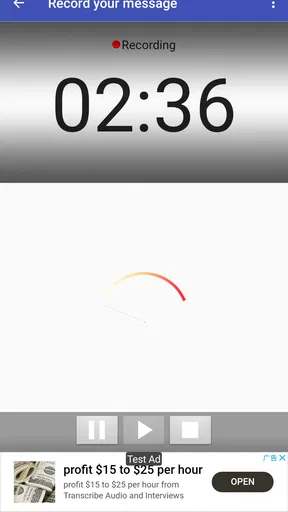
Now, onto the fun part. The app allows you to create ringtones from a variety of sources. You can import music from your library, record new sounds, or even use clips from video files. I decided to test it with a song from my music library. The process was smooth and, dare I say, enjoyable.
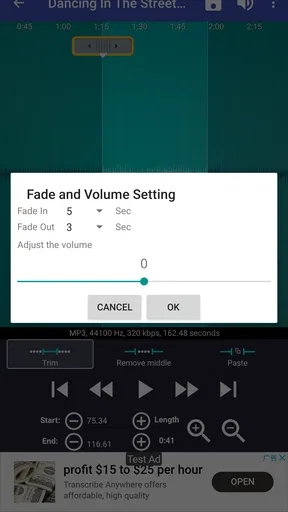
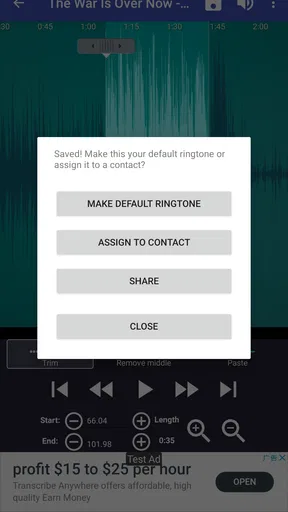
Once you select a track, the app provides a user-friendly editing tool. You can easily cut, copy, paste, and adjust the start and end times of your ringtone. There's even a nifty fade-in and fade-out feature that adds a professional touch to your creation. I found the controls to be responsive, making precise edits a cinch.
Customization Galore
What really sets this app apart is the level of customization it offers. Beyond the basic editing, you can tweak the volume, add effects, and even adjust the pitch. I spent a good chunk of time playing with these features, turning a regular track into something uniquely mine.
There's also an option to save and categorize your ringtones, which is super handy. You can have different ringtones set for different contacts, alarms, or notifications. This level of personalization is perfect for someone like me who loves to keep things fresh and exciting.
Sharing and Saving
After crafting your perfect ringtone, the app makes it easy to save and share your creation. You can set your new ringtone directly from the app, which saves a lot of hassle. Plus, if you're feeling generous, you can share your masterpiece with friends. I shared a couple of my creations, and it was as simple as a few taps.
The app also supports exporting your ringtone in various formats, ensuring compatibility across different devices. This is a thoughtful addition, especially if you switch phones frequently or share ringtones with friends using different devices.
Final Thoughts: A Must-Have for Music Lovers
Overall, Ringtone Maker: create ringtone lives up to its promise of providing an easy and enjoyable way to create custom ringtones. Its user-friendly design, coupled with powerful editing tools, makes it a standout choice for anyone looking to personalize their phone's soundscape.
Whether you're a tech novice or a seasoned pro, this app offers something for everyone. It's a fun, creative outlet that adds a splash of personality to your daily routine. So, if you're tired of the same old tunes, give Ringtone Maker a try. Trust me, your phone will thank you!
Pros
- Intuitive interface for easy editing.
- Wide variety of audio formats supported.
- Directly assign ringtones to contacts.
- Integrated file browser for quick access.
- Lightweight app with minimal ads.
Cons
- Limited advanced editing features.
- Occasional crashes on older devices.
- No cloud sync for ringtones.
- Ads can be intrusive at times.
- Limited customization for notification tones.
FAQs for Ringtone Maker:create ringtone
How easy is it to create a custom ringtone with Ringtone Maker?
Creating a custom ringtone with Ringtone Maker is straightforward. The app offers a user-friendly interface where you can select your favorite song, trim the desired section, and save it as a ringtone. It also provides easy-to-use editing tools, allowing even beginners to create personalized ringtones without hassle.
Does Ringtone Maker support all audio formats?
Ringtone Maker supports a wide range of audio formats, including MP3, WAV, AAC, and more. This versatility ensures that users can work with virtually any song or sound file they have on their device, making it a flexible choice for creating custom ringtones.
Can I use Ringtone Maker to create notification and alarm sounds?
Yes, Ringtone Maker allows users to create not only ringtones but also notification and alarm sounds. The app lets you trim and customize any audio file, making it easy to set unique sounds for different alerts on your device, enhancing your overall phone experience.
Is Ringtone Maker free to use, and are there any in-app purchases?
Ringtone Maker is free to download and use, offering essential features for creating ringtones at no cost. However, there may be in-app purchases available for advanced features, such as ad removal or additional editing tools, allowing users to enhance their experience if desired.
What permissions does Ringtone Maker require on my device?
Ringtone Maker requires access to your device's storage to select and save audio files. It may also request permission to modify system settings to apply ringtones, notifications, and alarms. These permissions are standard for apps of this type, ensuring smooth functionality while respecting user privacy.


